Quick answer
If you want a short, actionable answer: install Yoast from the WordPress plugin directory, run the configuration wizard, set one focus keyphrase per post, use the SEO and readability analysis to improve content, enable XML sitemaps, and configure schema and social previews. Use redirects or a dedicated manager when needed, test changes on a staging site, and back up before bulk updates.
How to Use Yoast SEO Plugin for WordPress
Yoast bundles content analysis, XML sitemap generation, structured-data helpers, and social previews in one plugin so you can handle most on-page SEO work from the WordPress editor. The interface and some labels may change between 2024 and 2025, but the core workflow — configure once, optimize per post, and monitor — remains the same.
Before you start
- Use a staging environment and create a full backup before making site-wide changes or bulk edits. – Check plugin/theme compatibility and plan how site-wide templates (titles, meta) will affect large sections of the site. – Compare features and workflows if you expect a different automation level (see the comparison section below for alternatives like Rank Math and workflow tools).
Step-by-step: install, configure, and optimize
1) Install and activate
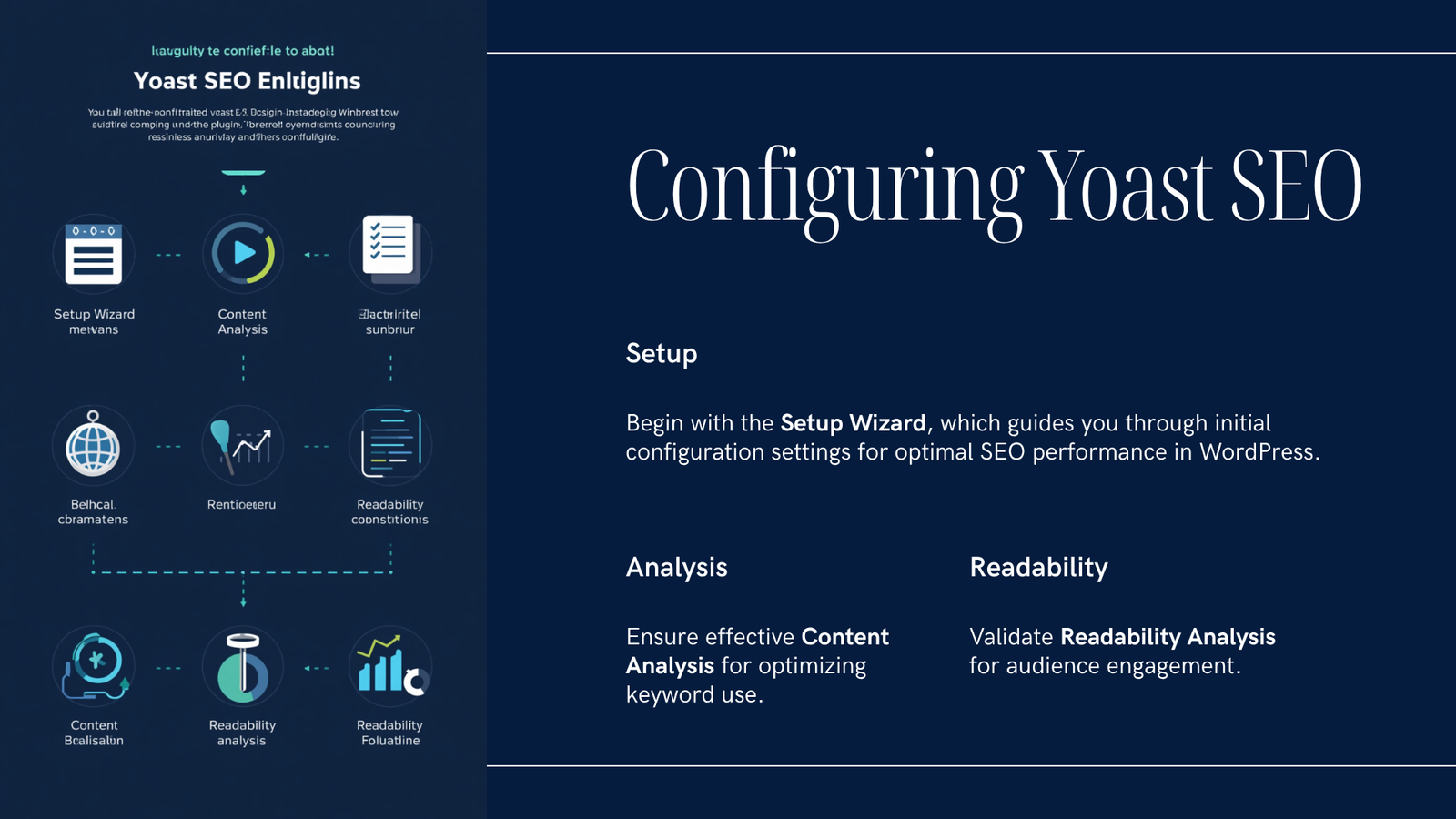
- In WordPress Admin go to Plugins → Add New, search for “Yoast SEO”, then Install and Activate. – Open SEO → General to access the configuration wizard and core settings.
2) Run the configuration wizard
- The wizard walks you through site type, organization/person settings, and search visibility. – Complete it to set basic canonical behavior, connect webmaster tools, and apply sensible defaults.
3) Site-wide features to check
- XML sitemaps: Yoast generates sitemaps automatically; confirm sitemaps are enabled under SEO → General → Features. – Search appearance: SEO → Search Appearance controls title and meta templates and schema defaults for posts, pages, archives, and taxonomies. Edit templates carefully; these changes affect many pages.
4) Optimize individual posts and pages
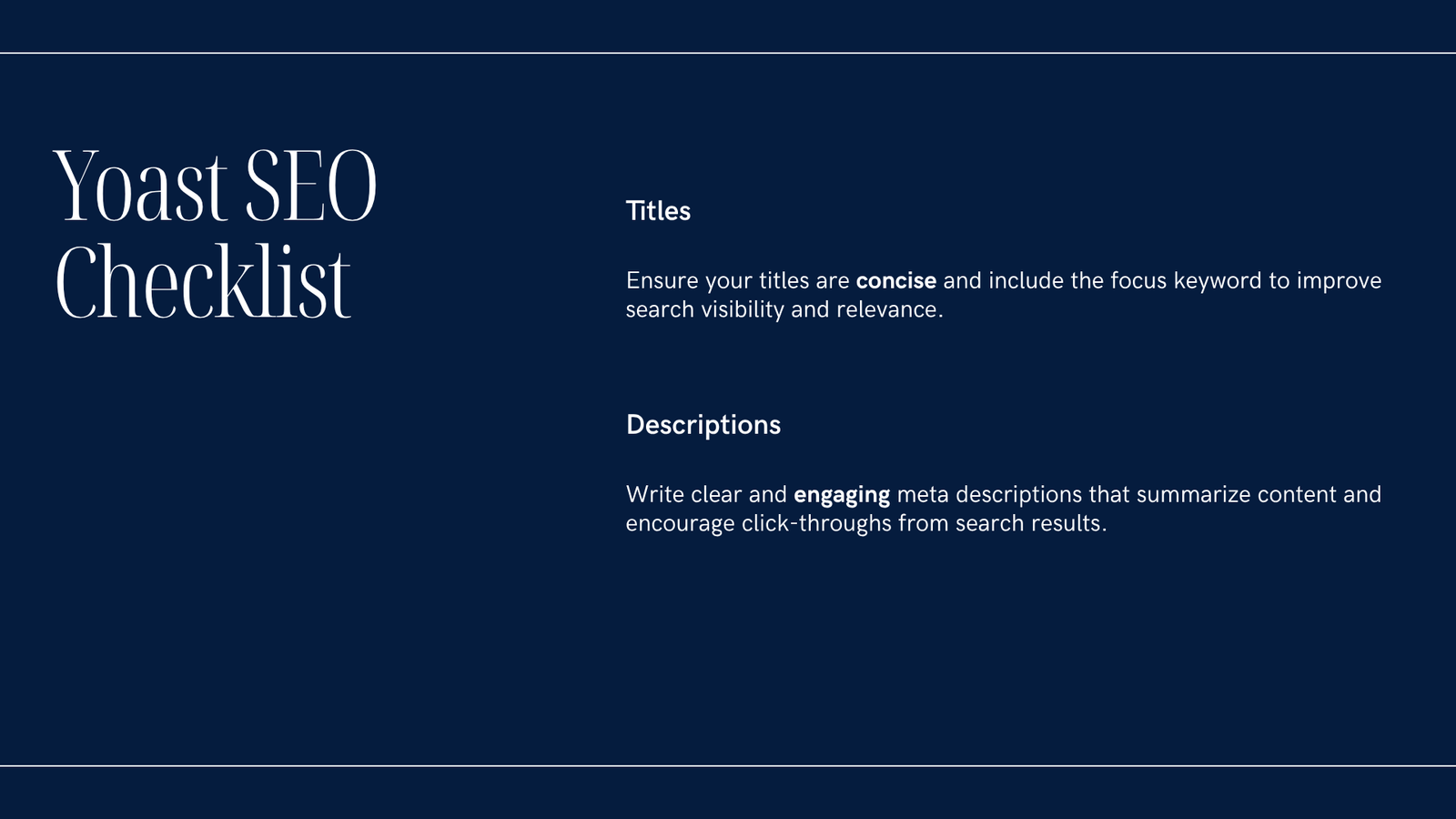
- In the post editor use the Yoast panel to: – Enter the focus keyphrase (also called focus keyword in Yoast SEO) — stick to one per post for the clearest guidance. – Edit SEO title and meta description preview to improve click-through appeal. – Review the content analysis for keyword usage, headings, image alt text, internal links, and meta-length. – Check readability suggestions for sentence length, paragraph length, and transition words. – Treat Yoast’s color-coded signals (red/orange/green) as guidance — prioritize natural, useful content for readers over chasing green lights.
Practical focus keyphrase tips
- Choose a single realistic focus keyphrase that matches user intent. – Use that phrase in the title, first paragraph, at least one subheading, and the URL if it makes sense, but avoid keyword stuffing. – Use the plugin’s suggestions to spot missing elements (like alt text or internal links), not as strict rules.
5) Schema and social preview settings
- Confirm schema defaults under Search Appearance so content types (Article, WebPage, Product) reflect your pages. – Use the social preview fields to set Open Graph images and titles for Facebook/Twitter per post — useful for optimizing how content appears when shared.
6) Redirects and advanced tools
- Redirects managers are often a premium Yoast feature; use a dedicated redirects plugin if you prefer not to upgrade. – Use the bulk editor and other tools cautiously: test on staging and back up the database before mass edits.
7) Internal linking and sitemap checks
- Good internal linking improves crawlability and navigation. Yoast and other tools can suggest links while editing. – After publishing, verify indexing in Google Search Console and confirm the sitemap is listed and accessible.
Free vs premium: what changes
The free Yoast plugin covers core content analysis, XML sitemaps, and basic schema. Premium plans add conveniences (example: a built-in redirect manager and historically the ability to target multiple keyphrases), but features and bundles change over time — check Yoast’s official pages for current details. If you stay on free, you may need complementary plugins for advanced redirects, enhanced schema, or automated internal linking.
Quick comparison: Yoast, Rank Math, and a workflow tool
- Yoast SEO: a full-feature WordPress SEO plugin with content analysis, sitemaps, schema helpers, and social previews. It focuses on editor-integrated guidance and site-wide defaults. – Rank Math: another full SEO plugin with a similar set of features, including automated suggestions and some different UI workflows. Compare current feature lists and compatibility before switching. – DominoPost (content workflow tool): not a full SEO plugin but a content/editor productivity tool that can complement an SEO plugin. It includes an AI Writer/Content Assistant, Table of Contents, SEO post analysis, bulk title editor, and an internal-linking assistant (some features require a Pro add-on). Evaluate it alongside Yoast or Rank Math if you need stronger content workflow automation.
Monitoring and iterating
- After publishing, check Google Search Console for indexing and coverage issues. – Use site audit tools to find broken links, structured-data problems, and page speed issues. – Revisit title/meta templates or schema defaults if you change site structure or content types.
Testing, staging, and backups (again)
Always test configuration changes on a staging site and create backups before making broad updates such as bulk title changes or site-wide template edits. This minimizes risk and makes rollbacks straightforward.
Concise FAQ
Q: Can I use Yoast for free?
A: Yes — the free Yoast plugin provides core SEO and sitemap functions. Some convenience features are paid. Q: How many focus keyphrases should I use per post?
A: Use one focus keyphrase per page for the clearest guidance from the analysis panel. Q: Will Yoast alone guarantee better rankings?
A: No plugin guarantees rankings. Yoast helps you follow on-page best practices and produces technical outputs like sitemaps and structured data; results depend on content quality, site health, and broader SEO work.
Conclusion
Knowing how to use Yoast SEO plugin for WordPress means treating it as an editor-focused toolkit: configure the basics, optimize each post with a single focus keyphrase and the readability checks, enable sitemaps and schema, and test changes on staging with backups. For workflow features like bulk title edits or advanced internal linking, consider pairing Yoast with a content productivity tool and evaluate compatibility before adding more plugins.