

Handling returns and exchanges can quickly eat into profits through shipping, restocking, or processing costs. ClaimPress – Warranty, Return, Refund & Exchange for WooCommerce (by DominoPress) solves this in the Pro version by letting you automatically charge restocking fees on returns and exchange processing fees on swaps — all natively inside WooCommerce, without manual invoicing or third-party workarounds.
The free version supports basic paid warranties and manual fee waiver requests, but automated fee charging (restocking/exchange) is exclusive to ClaimPress Pro. Here’s how to set it up and start recovering costs.
Step 1: Upgrade to ClaimPress Pro (Required for Automated Fees)
- Install the free ClaimPress plugin from WordPress.org if not already done.
- Purchase and activate ClaimPress Pro from https://dominopress.com/plugin/claimpress (typically around $49–$59/year based on user feedback).
- Pro unlocks:
- Automated restocking fees deducted from refunds
- Automated exchange processing fees charged before approval
- Enhanced fee waiver handling with proof uploads
Step 2: Enable Return & Exchange Features on Products
- Go to Products → Edit the product you want to protect with fees.
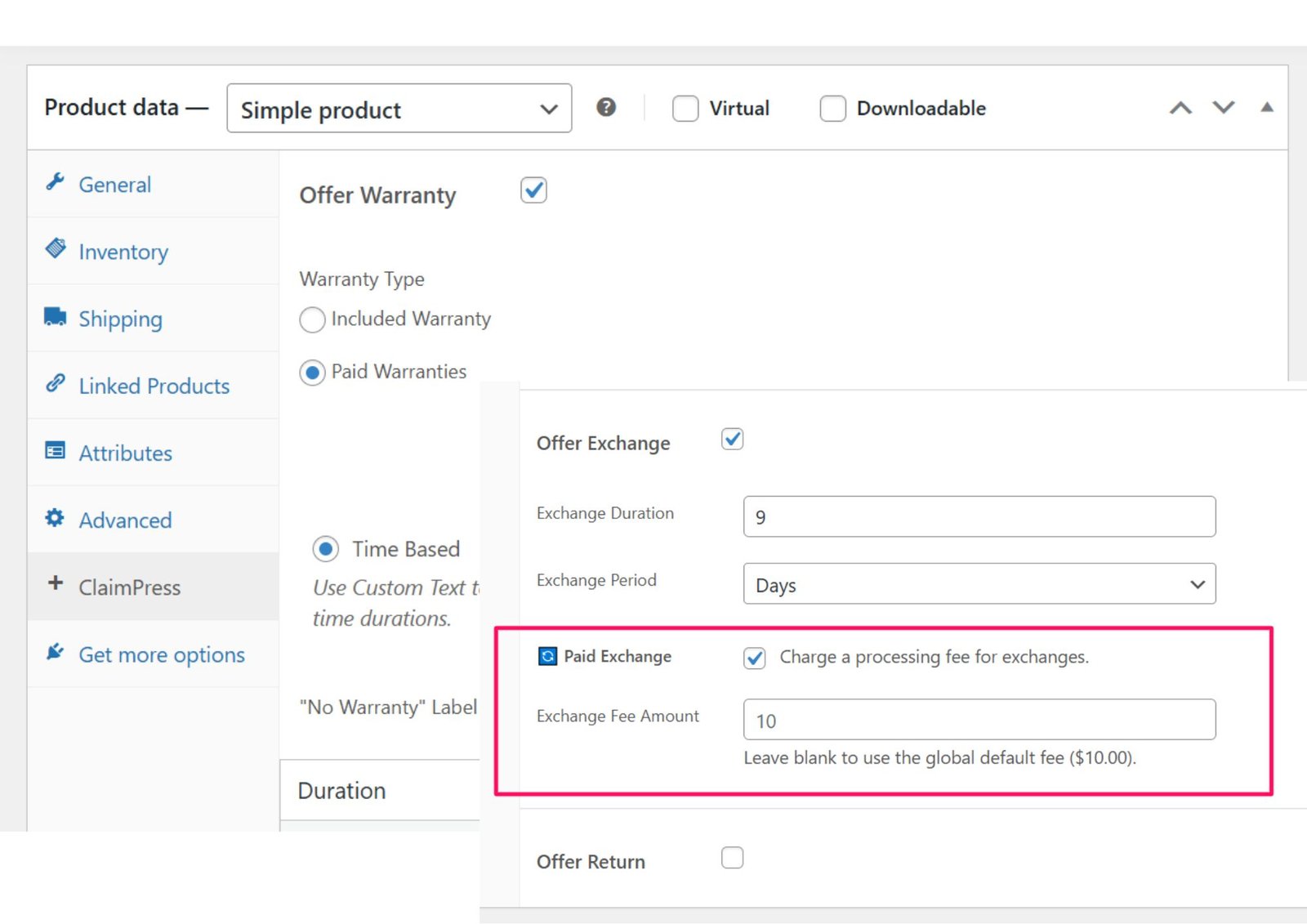
- In the Product Data metabox, switch to the ClaimPress tab.
- Check Enable for:
- Return/Refund (to allow returns with possible restocking fee)
- Exchange (to allow swaps with possible processing fee)
- Set the return/exchange window (e.g., 30 Days).
- Save the product. Repeat for other products as needed.
Step 3: Configure Restocking Fees for Returns (Pro Only)
- After activating Pro, head to ClaimPress > Settings (or the dedicated fees/pro section — refer to the plugin’s post-upgrade documentation for exact location).
- Enable the Restocking Fee option.
- Set your fee:
- Flat amount (recommended): e.g., $15
- Or percentage of order value
- The fee will now automatically deduct from the customer’s refund total when you approve a return claim in the dashboard.
- Example: Customer returns a $100 item → Refund calculated as $100 – $15 restocking = $85 refunded.
This stops profit loss on “change of mind” returns while keeping the process seamless.
Step 4: Configure Exchange Processing Fees for Swaps (Pro Only)
- In the same ClaimPress settings area, enable Automated Exchange Fees.
- Define the fee:
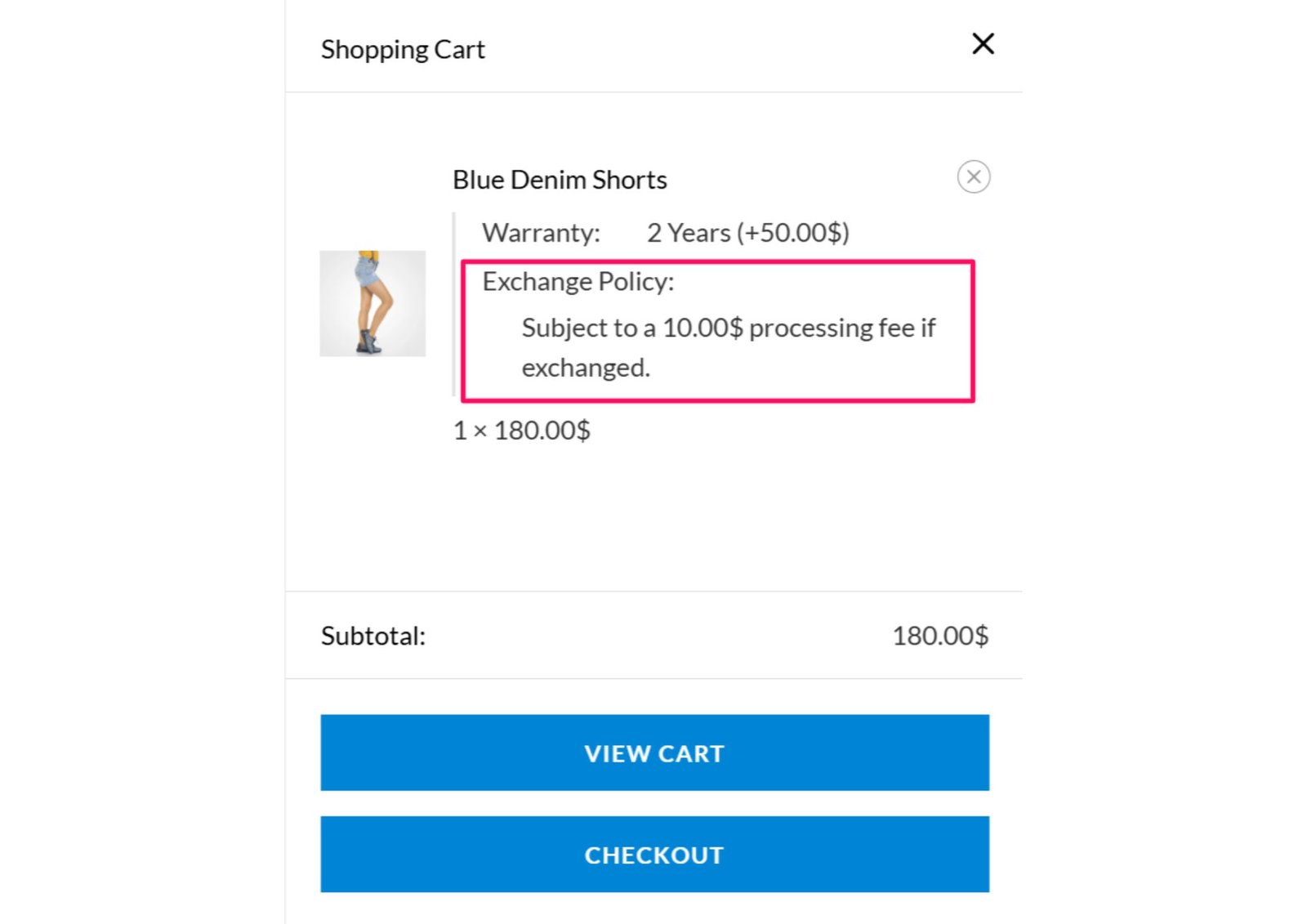
- Flat processing fee: e.g., $10 (to cover outbound shipping for the new size/color)
- When a customer requests an exchange (e.g., different size), the fee is automatically charged inside WooCommerce before you finalize approval.
- The customer pays the fee via their original payment method or a new link if needed.
- Once paid, you ship the replacement — turning a potential loss into a break-even or small-profit action.
Step 5: Handle Fee Waiver Requests Fairly (Free + Pro)
Both versions allow customers to request a fee waiver (e.g., “You sent the wrong item”).
- In Pro — Make it smarter:
- Enable proof requirement (customers upload photos of defects/wrong item during claim submission).
- Claims with waiver requests go to Pending (or Pending Payment if fee applies).
- From ClaimPress > All Claims:
- Review uploaded proof.
- Approve waiver → No fee charged (free return/exchange).
- Decline waiver → One-click action sends customer a payment link for the standard fee.
This reduces abuse while protecting you when the fault is yours.
Step 6: Monitor and Process Claims with Fees
- Go to ClaimPress > All Claims dashboard.
- Filter by type (Return or Exchange) and status.
- When reviewing:
- See if a fee applies automatically.
- Update status (Pending → Approved).
- Communicate directly in-thread if clarification needed.
- Refunds/exchanges process through standard WooCommerce tools, with fees already handled.
Quick Benefits & Tips
- Profit protection: Recover shipping/restocking costs automatically — many users say Pro pays for itself quickly on medium/high-volume stores.
- Customer transparency: Display your fee policy clearly on product pages and returns portal to set expectations.
- Test first: Create a test order, submit a return/exchange claim, and verify fee calculation before going live.
- No coding: Everything is configurable via settings and product tabs — no custom code required.
If you’re tired of losing money on returns and size swaps, this is one of the cleanest native ways in WooCommerce to add and enforce fees. Start with the free version to test basic claims, then upgrade for these powerful cost-recovery tools.


