

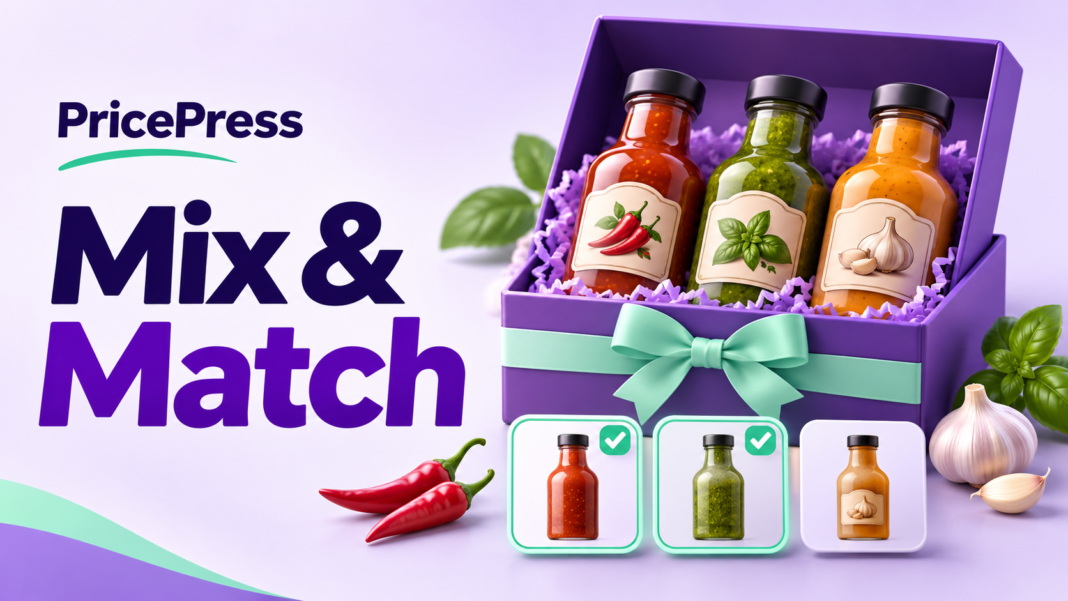
Quick answer: To create mix and match bundle discounts in WooCommerce, define the eligible product pool in PricePress, set the required quantity, choose a fixed bundle price or percentage saving, and test incomplete and repeated bundles.
Mix and match bundle discounts in WooCommerce let shoppers choose eligible products while earning a defined offer. A sauce store might advertise “Pick any three bottles for $30,” giving customers flexibility without maintaining every possible combination as a separate product.
PricePress’s feature description includes fixed-price bundles, percentage bundle savings, and cross-category combinations. The important setup decision is what counts as one complete bundle.
1. Build an eligible product collection
Select products that make sense together and can tolerate the offer’s economics. A gourmet sauce collection is easier to explain than a mixed selection of unrelated items.
Inspect the highest-cost eligible products, not only the average item. A fixed bundle price must remain workable when a customer chooses an expensive combination. Use specific product targets when you need a tightly controlled starting set.
2. Choose a fixed price or percentage saving
“Any three for $30” offers a predictable bundle total. “Choose four and save 25%” preserves differences between the products’ original prices. These models can produce very different savings across a varied catalog.
For example, three bottles priced at $12, $14, and $16 normally total $42. A $30 fixed bundle saves $12. A 25% reduction on the same $42 selection would produce $31.50. Decide which promise you intend before entering the rule.
3. Define quantity and category requirements
For an unrestricted three-item bundle, choose the eligible pool and required quantity. For a complete-outfit promotion, define the category composition: one shirt, one pair of pants, and one belt.
A condition requiring three items from a combined pool is not necessarily the same as requiring one item from each category. Confirm that the installed rule builder can express your intended composition before announcing the offer. The supplied plan comparison reserves advanced multi-category targeting for Pro.
4. Make the shopping instructions match the implementation
Place concise offer copy where shoppers browse the eligible products. Name the collection, quantity, reward, and exclusions. If repeated products are allowed, say so; if all selections must be different, verify that restriction first.
A bundle discount rule does not automatically imply a dedicated visual bundle-builder page. Describe the selection process that your store actually provides, whether customers use regular product pages or another shopping interface.
5. Test partial, complete, and repeated bundles
- Add two eligible bottles and check that the three-item offer has not applied.
- Add a third and confirm the expected bundle price.
- Add an unrelated item and check that it retains its intended price.
- Test four eligible bottles to see how the extra unit is treated.
- Test six bottles and confirm whether the offer repeats as intended.
- Remove an item and check that incomplete-bundle pricing returns.
6. Assess the promotion by contribution
Monitor the mix of products selected, the average discount, and the cost of fulfilling the bundle. A promotion can shift demand toward the most expensive eligible combination, so review actual selections after launch.
Use PricePress to configure the campaign. Our bundle discount planning guide provides additional checks for customer messaging and order accuracy.
Frequently asked questions
Is a bundle discount the same as a bundle-builder page?
No. Pricing eligibility and the shopping interface are separate. Confirm the customer selection experience your store provides before promising a visual builder.
Can one item from each category be required?
The supplied description includes cross-category bundles, with advanced multi-category targeting listed under Pro. Confirm that your installed rule builder expresses the required category composition.
Official setup resources
Check the product variations included in the eligible bundle pool. See the WooCommerce variable product documentation.


