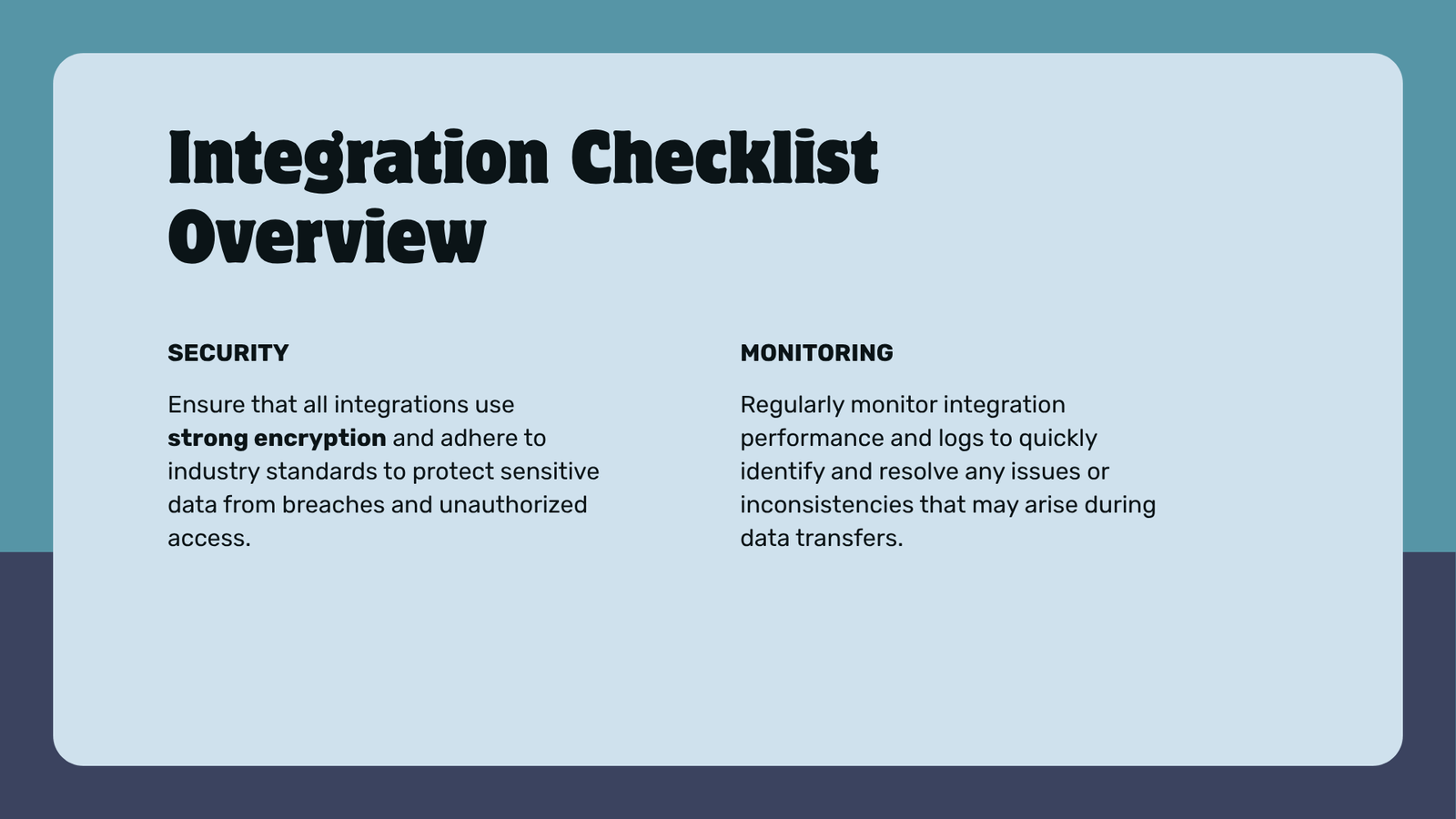
If you are looking for WordPress integrations, this guide explains the practical options and decisions to consider before you choose a solution.
Answer-first introduction
WordPress integrations can connect your site to payments, CRM systems, cloud storage, and automation tools so your business runs with less manual work. This guide explains which integrations matter for most small-to-midsize sites, how to evaluate them, and practical steps to implement and test them safely.
Why these integrations matter
- Payments: let customers pay online and reduce cart abandonment.
- CRM: keep leads and customers in one place so marketing and support stay coordinated.
- Cloud storage/CDN: host large files and serve assets fast and reliably.
- Automation: reduce repetitive tasks using webhooks, Zapier/Make, or native plugins.
Essential WordPress integrations for business
Choose integrations by business need, not buzz. Below is a compact comparison to help prioritize.
| Category | Common options | When to choose | Quick pros/cons |
|---|---|---|---|
| Payments | Stripe, PayPal, WooCommerce + payment gateways | You sell products, subscriptions, or services | Pros: proven, secure; Cons: transaction fees, setup complexity |
| CRM | HubSpot, Zoho CRM, Salesforce | You need lead tracking, email sequences, or sales pipelines | Pros: central customer data; Cons: extra cost, mapping fields |
| Cloud / CDN | Amazon CloudFront, Microsoft Azure Storage, Cloudflare | You host large media, offer downloads, or need global delivery | Pros: reliability and speed; Cons: billing complexity |
| Automation | Zapier, Make (Integromat), webhooks, WordPress automation plugins | You want to sync orders, contacts, or notifications | Pros: saves time; Cons: can break if endpoints change |
| Mobile / App | PWAs, wrappers, or native apps built from WordPress | You want a mobile app experience | Pros: engagement; Cons: development cost, app-store policies |
Decision criteria: how to pick an integration
- Business fit: Does it solve a specific workflow (payments, lead capture, fulfillment)?
- Maintenance & support: Is the plugin actively maintained and reviewed in the WordPress plugin directory?
- Data flows: Where will customer data live? Is it compliant with privacy rules you must follow?
- Security posture: Does the integration use secure APIs and OAuth or require storing credentials?
- Costs: Account for transaction fees, API usage, and plugin licensing.
Practical steps to implement integrations
- Plan fields and flows
– Map each integration’s data model: e.g., order → CRM deal → email sequence.
– Decide required custom fields and how they map to WordPress user meta or WooCommerce order meta. - Pick a well-supported plugin or official connector
– For CRM look for official connectors or reputable third-party plugins (e.g., HubSpot and Zoho have WordPress connectors). If you need a zoho integration for wordpress plugin, prefer the official Zoho extensions or trusted plugins in the WordPress plugin directory. - Use managed credentials and least privilege
– Create API keys with limited scopes. Avoid putting keys in theme files; use WP config or dedicated secret storage. - Test on staging first
– Verify data mapping, error handling, and edge cases (failed payments, duplicate leads). - Automate error alerts
– Use monitoring or log errors to a support Slack/email so you can fix integration breaks quickly.
Developer tips: custom integrations and boilerplate
- If you need a custom connector, start from a tested boilerplate for wordpress plugin to handle activation, options, and security patterns. That saves time and reduces mistakes.
- Use WordPress hooks (actions/filters) rather than modifying plugin source.
- For file hosting, evaluate a microsoft azure storage for wordpress plugin or CloudFront integration for wordpress site when serving large media or downloads.
Mobile apps and geolocation
- If someone asks how to create app for wordpress website or create a mobile app for wordpress site, decide between a Progressive Web App (PWA) or a native wrapper: PWAs are faster and cheaper; native apps require more development and maintenance.
- For location-based campaigns (Google Ads targeting, store locators) test the best geolocation plugin for wordpress google ads or compatible mapping plugins that expose location data to your ad/analytics tools.
Security and privacy checklist
- Only install plugins from trusted sources (WordPress.org or vendors’ official sites).
- Keep plugins and WordPress core updated.
- Audit where Personally Identifiable Information is stored; consider encryption at rest for sensitive data.
- Avoid pirated or nulled plugins — they often include malware and will compromise your site.
Short example implementation (payments + CRM)
- Install WooCommerce for product/orders.
- Add a Stripe gateway plugin for secure card handling (Stripe handles PCI scope).
- Install an official HubSpot or Zoho connector to push completed orders to CRM as deals.
- Configure webhooks to notify your fulfillment system or automation platform (Zapier/Make) for downstream tasks.
One option worth evaluating for checkout customizations is DominoPress CheckoutCrafter; for analytics paired with WooCommerce you might consider DominoPress InsightPress—both are third-party plugins listed by DominoPress and can help extend checkout fields or analytics (evaluate compatibility and reviews before buying).
FAQ
Q: How do I know if I should use a plugin or a custom API integration?
A: Use a plugin if an official connector exists and matches your data mapping. Choose a custom API integration when you need unique workflows or deeper control that plugins can’t provide.
Q: Will integrations slow my site down?
A: Good integrations should not noticeably slow your site when configured correctly. Offload heavy tasks to background jobs, use a CDN, and monitor performance. Avoid synchronous API calls on page load.
Q: Can I test integrations without affecting real customers?
A: Yes. Use staging sites, sandbox API keys (Stripe, PayPal, Zoho have sandboxes), and test webhooks to a staging endpoint.
Conclusion
Start by mapping your workflows, then pick well-supported connectors that meet your security and maintenance criteria. Test thoroughly on staging, monitor errors, and choose cloud/CDN or automation tools that match expected traffic and data flows. Clear mapping, least-privilege credentials, and staged testing will keep WordPress integrations reliable as your business scales.
Sources
- WordPress plugin directory: https://wordpress.org/plugins/
- WordPress documentation: https://wordpress.org/documentation/
- DominoPress plugins (portfolio): https://dominopress.com/plugins
- Digital Web Tutor: https://digitalwebtutor.com/