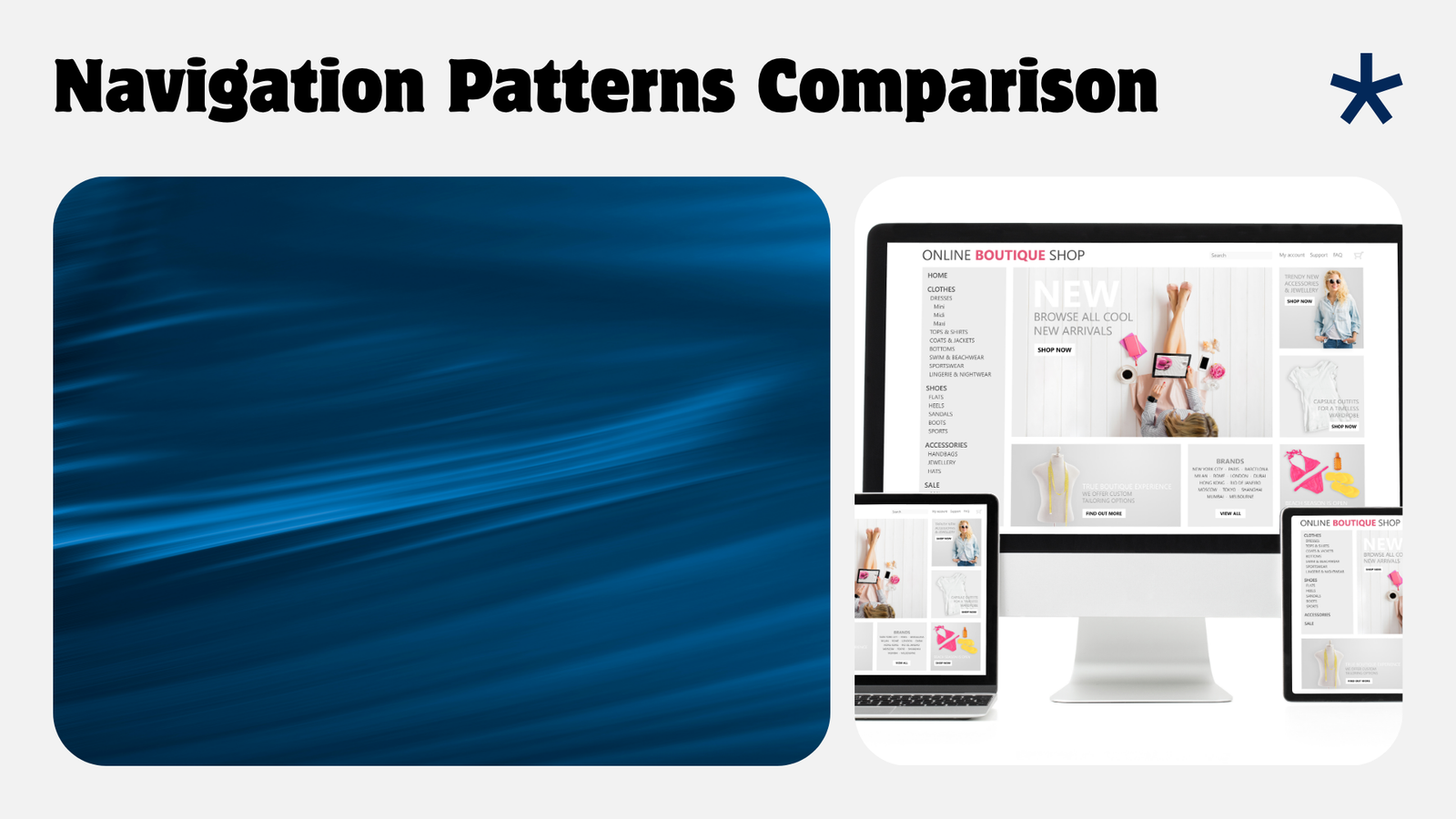
If you are looking for menu plugin for WordPress, this guide explains the practical options and decisions to consider before you choose a solution.
Introduction
A good menu plugin for WordPress does more than list links — it improves discoverability, supports responsive layouts, and can integrate icons, popups, tables, and FAQ patterns to make navigation useful and accessible. This guide gives practical decision criteria, setup steps, and UI tips so you can pick and configure navigation components even if you’re a beginner.
Why navigation and UI components matter
Answer first: visitors who can find content fast stay longer and convert more. Menus are the primary roadmap on many sites, but popups, data tables, and embedded FAQs play supportive roles — surfacing information without forcing extra clicks.
Choosing a menu plugin for WordPress
When evaluating a menu plugin for WordPress consider these criteria:
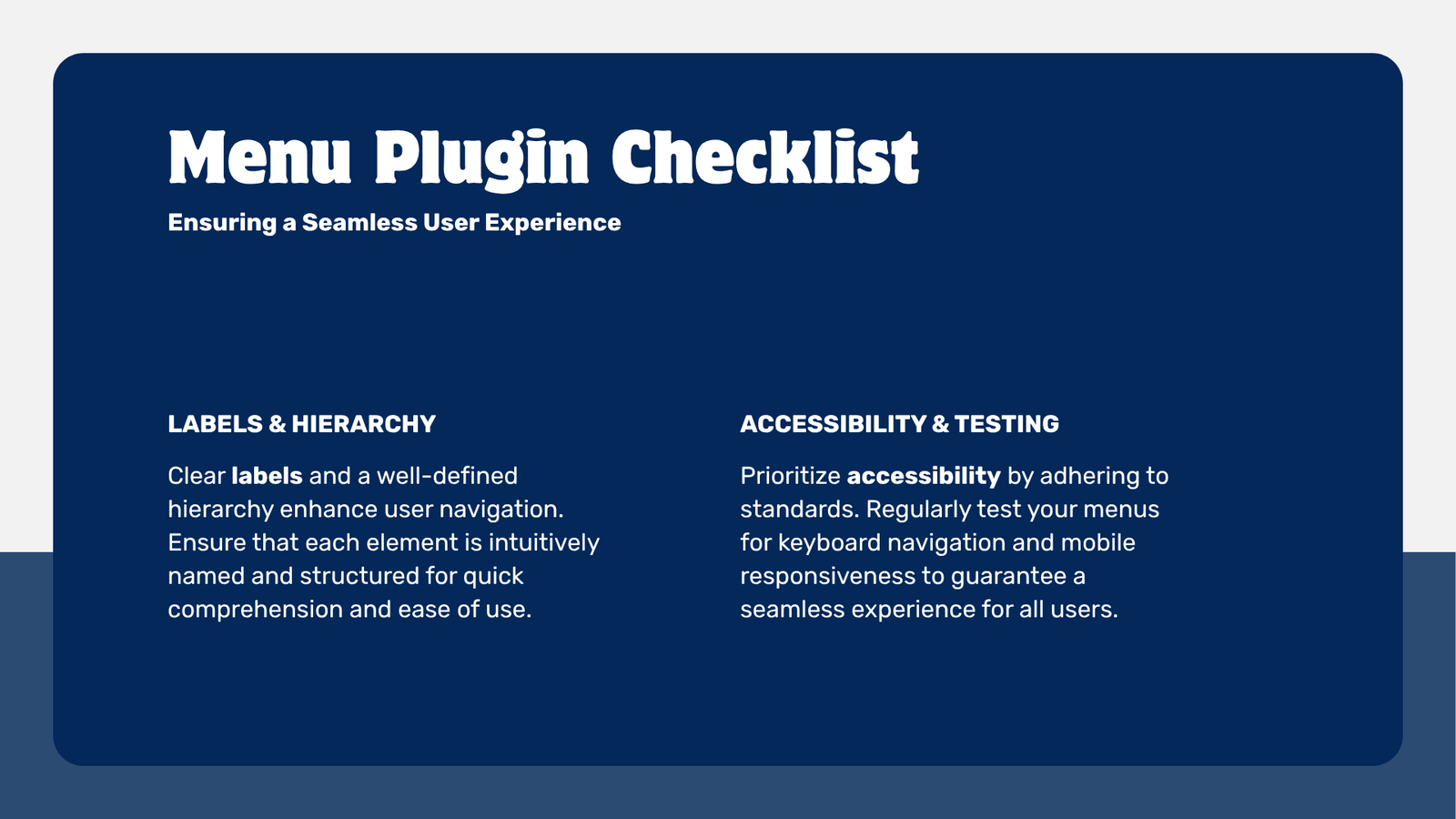
- Accessibility: keyboard navigation and ARIA support.
- Responsiveness: how it collapses on mobile (look for “responsive menu for WordPress plugin” in feature lists).
- Customization: support for icons, submenus, and layout control.
- Performance: lightweight output and minimal render-blocking assets.
- Compatibility: works with your theme and page builder.
- Pricing and support: free vs premium features and update cadence.
Compact comparison table
| Feature | Why it matters | What to look for |
|---|---|---|
| Mega menu support | Complex sites need deep, multi-column menus | “mega menu plugin for wordpress free” options or premium versions with grid layouts |
| Mobile behavior | Many visitors are on phones | Off-canvas or toggled menus that are touch-friendly |
| Icons & logos | Improve scanability and branding | Ability to add an icon for WordPress menu items and custom logo support |
| Shortcodes & widgets | Add menus anywhere | Shortcode for WordPress menu and widgets for WordPress footer |
Common navigation components and when to use them
- Menus: primary, secondary, and footer menus organize site sections. Footer menus often use widgets for WordPress footer.
- Mega menus: best for large catalogs (ecommerce, documentation). Free versions exist, but verify update history and reviews when searching “mega menu plugin for wordpress free”.
- Icons and logos: small icons for menu items (icon for WordPress menu) speed scanning. Keep site icons for WordPress free options (SVG or PNG) optimized.
- Popups: useful for focused actions (newsletter signup, product finder). Avoid intrusive behavior; prefer user-initiated or intent-based popups.
- Tables: use for price lists, schedules, or comparison charts — accessible tables help screen-reader users.
- FAQs: embed structured FAQs to answer common questions and reduce support load; use collapsible blocks to keep pages tidy.
Logo size, header dimensions, and icon guidance
- Logo size for WordPress header: there is no single correct size, but a common starting point is 250 × 100 px for desktop and provide a retina version at 2x. Check your theme’s recommended dimensions.
- Dimensions for WordPress header: many themes use header heights between 60–120 px; measure with browser dev tools and adjust responsive settings.
- Icons for WordPress site: use vector SVG where possible for crisp scaling. If using raster icons, keep them small (e.g., 24–32 px for menu icons) and use an icon font or sprite to reduce requests.
Step-by-step: install and configure a basic menu with icons and mobile support
- Choose a plugin that matches your needs (mega menu, responsive menu, or lightweight menu). Check WordPress.org plugin directory for reviews and active installs.
- Install and activate: Plugins → Add New → search plugin name → Install Now → Activate.
- Create your menu: Appearance → Menus → create menu → add pages, categories, or custom links.
- Add icons: if the plugin supports icons, edit a menu item and choose an icon or add SVG via the menu item’s fields. Alternatively, use a small inline SVG in the link label.
- Configure mobile behavior: set breakpoints, enable off-canvas or hamburger toggles, and test on multiple devices or using browser responsive view.
- Add to a widget area or shortcode: many plugins provide a shortcode for WordPress menu you can paste into content, or add the menu to widgets for WordPress footer/header areas.
Security note about “free” plugins
Searching for “mega menu plugin for wordpress free” is fine, but avoid downloading modified or nulled copies of premium plugins. Nulled plugins can contain malware, backdoors, or remove licensing checks that prevent updates. Only use plugins from trusted sources: WordPress.org, reputable developers, or the official plugin marketplace.
Using popups, tables, and FAQs with navigation
- Popups linked from a menu item should be labeled clearly (e.g., “Contact (Popup)”) and accessible — ensure focus trapping and an easy close method.
- Tables: embed responsive tables for data-heavy navigation pages (e.g., a product comparison). Use proper table markup and aria attributes where needed.
- FAQs: create a canonical FAQ block and link to it from the menu or use an FAQ accordion on category pages. Consider structured data for FAQs if appropriate.
When to use shortcodes vs widgets
- Shortcode for WordPress menu: use when you need the menu inside a page or custom content area.
- Widgets for WordPress footer/header: use when the theme exposes widget areas. Widgets are simpler for non-technical editors.
Mini checklist before you go live
- Test keyboard navigation and screen-reader announcements.
- Verify mobile behavior and speeds on low-end devices.
- Ensure icons and logos look sharp (check retina images).
- Set sensible fallbacks if a script fails (plain list menu should still be usable).
FAQ
Q: What is the best plugin for WordPress menu?
A: There’s no single “best” plugin for every site. Choose based on your needs: lightweight plugins for simple sites, feature-rich mega menu plugins for complex catalogs, and accessibility-friendly plugins for broader audiences. Check credible reviews on WordPress.org.
Q: Can I use a free mega menu plugin safely?
A: Yes — use the official WordPress.org directory or reputable developers. Avoid nulled/pirated downloads.
Q: How do I add icons to menu items?
A: Many menu plugins include built-in icon pickers. Otherwise, add inline SVG or use an icon font and style the menu item with CSS classes.
Q: What size should my header logo be?
A: Start with around 250 × 100 px and provide a 2x version for retina displays; follow your theme’s recommended dimensions for exact sizing.
Conclusion
A thoughtful menu plugin for WordPress plus supporting UI components (icons, popups, tables, FAQs) will make your site easier to use and maintain. Focus on accessibility, responsive behavior, and compatibility with your theme. Test on real devices and avoid unsafe plugin sources. With the steps above you can pick, install, and configure navigation that fits your site’s needs.
Sources
- WordPress plugin directory: https://wordpress.org/plugins/
- WordPress documentation: https://wordpress.org/documentation/
- Digital Web Tutor: https://digitalwebtutor.com/